
The day has finally come. The two old P4 Dell’s I’ve been using as Linux workhorses (CentOS, as we look after a fair amount of RHEL boxes and that was the closest fit – RedHat no longer providing 32-bit builds) have finally given up the ghost, to be replaced – at least in the short term – with an RPi 3. This then seems like as good a time as any to put up my notes on getting a working professional Linux desktop on ARM/x86 up somewhere (RHEL 7 makes all this practically seamless for x86-64, but unfortunately isn’t yet available for ARM[64] desktop), that somewhere being here.
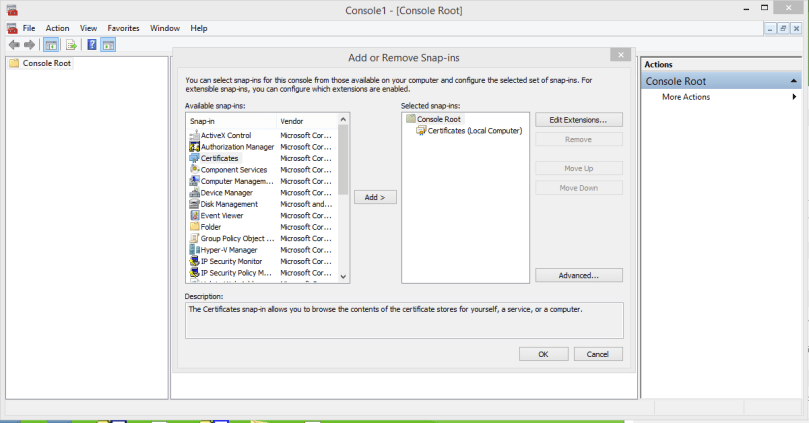
First up – instant messaging. We currently use Lync in the office, and the messaging part is fairly easy to replace using Pidgin (formerly Gaim). Our first step is to export any root certificates necessary from an existing Windows install (or to procure one from your ITS department). To do so run the Microsoft Management Console (“mmc”) and add in the Certificates snap-in :
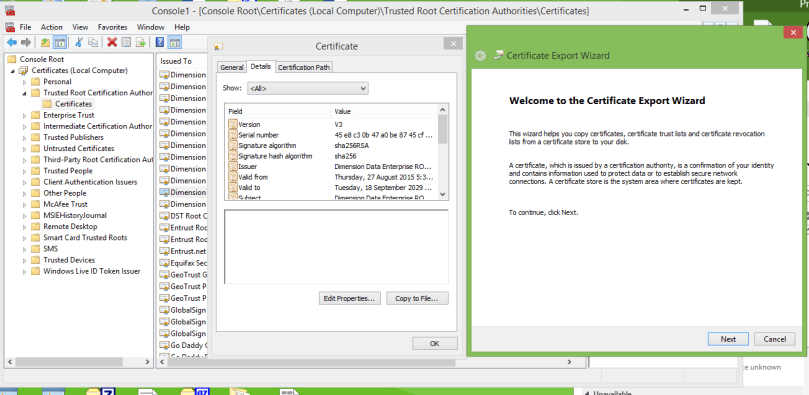
Once this is done, export the root certificate of the domain (making sure to check the expiry date to ensure you have the right one) by double-clicking and opening the “Details” tab, then hitting the “Copy to File..” button :
Export the file as PEM. For some info on the different certificate formats see here – if you export as the wrong format i.e. DER you can use openssl to convert it to the correct format :
openssl x509 -in dd-root.cer -outform pem -out dd-root.pem
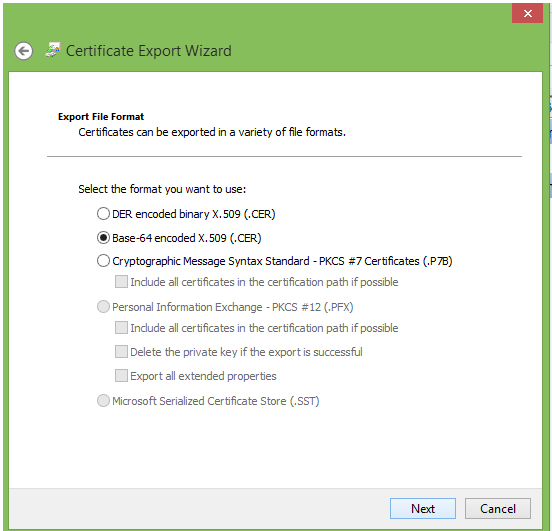
Save with your preferred filename, including the extension .pem, and copy to your target Linux box. The Windows part of this install is now complete. Now amble over to your Linux machine and start installing Pidgin. This should easily be handled by your package manager. Under Debian-based systems (including Ubuntu and Mint) this involves firing up the apt package manager :
sudo apt-get install pidgin pidgin-themes pidgin-sipe
This will install the necessary Pidgin icon set (not pulled in by default for some reason), and support for the SIPE protocol (an extended SIP protocol used by Lync) alongside Pidgin itself. Under Redhat-based distributions the process is similar. The package management software in this case is “yum” :
sudo yum install pidgin pidgin-sipe bluebird-xfwm4-theme
NOTE : If you have not already installed the optional EPEL repositories you may need to do so – see here for more details.
The last item is again an icon set – I’ve chosen this one out of personal preference, but any of these themes should work (try “yum search bluebird” to obtain a list). Hit Enter and agree to the various prompts. Once Pidgin has been successfully installed you’ll need to copy in your root certificate. This is installed system-wide :
sudo mv .pem /usr/share/purple/ca-certs/
Or – as in the case of Debian 8 – per-user :
mv .pem ~/.purple/certificates/x509/
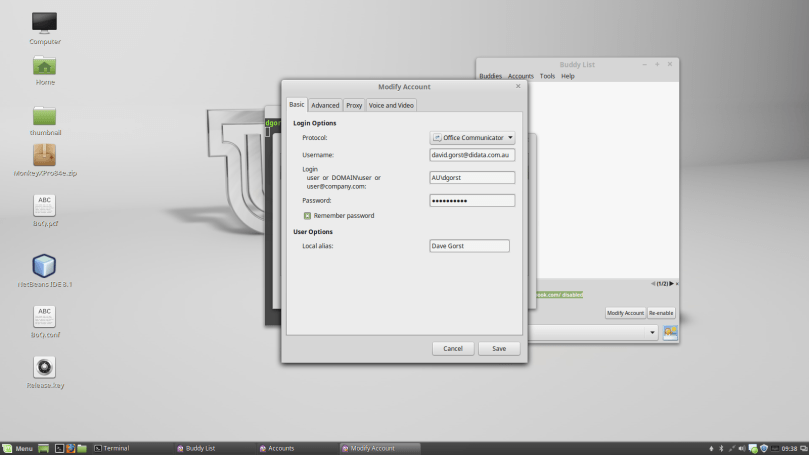
Pidgin should now be successfully installed, so fire it up. On opening it’ll ask you to set up an account – select “Office Communicator” as your protocol :
And you’re done! Haven’t tried this with Voice and Video yet, will update as, and if, necessary …
 Dave's Big Bag of Bollocks